
Video Link : https://youtu.be/xRHj2_Dgmss
Case 1
In the case of an active Shiprocket connection, the order status and tracking ID will be automatically updated on your Shopyxa merchant account.
Follow the steps to check the order status:
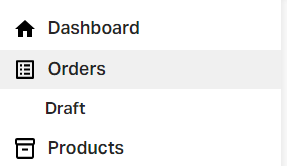
Go to orders on the admin panel.

Here, you can view the automatically updated order status as "Confirmed" or "Unfulfilled".

Case 2
The admin can manually update the order status and add the tracking ID when Shiprocket is disabled.
Go to orders on the admin panel.


A window with complete order details will appear on your screen. Here you can see the current order status as "confirmed" by default.
Now, if the merchant can complete the order, click on "Fulfill item".
Update the order status using the given options.
If you have already received the payment for the order, then click on "mark as paid".

Once you finish following the above instructions, you will see a new option "Add tracking".Click on it.


Again, if you want to view or edit the shipping track ID, you can click on the "View/edit tracking" button.

If you still can't find an answer to what you're looking for, or you have a specific question, open a new ticket and we'd be happy to help!
Contact Us